cse15l-lab-reports
Lab Report 1 - Remote Access and FileSystem
Step 1: Installing Visual Studio Code
-
Click on this link to go to the download page for VScode: Visual Studio Code Download
-
Next, select the download for your operating system. (I will be showing the Windows version)
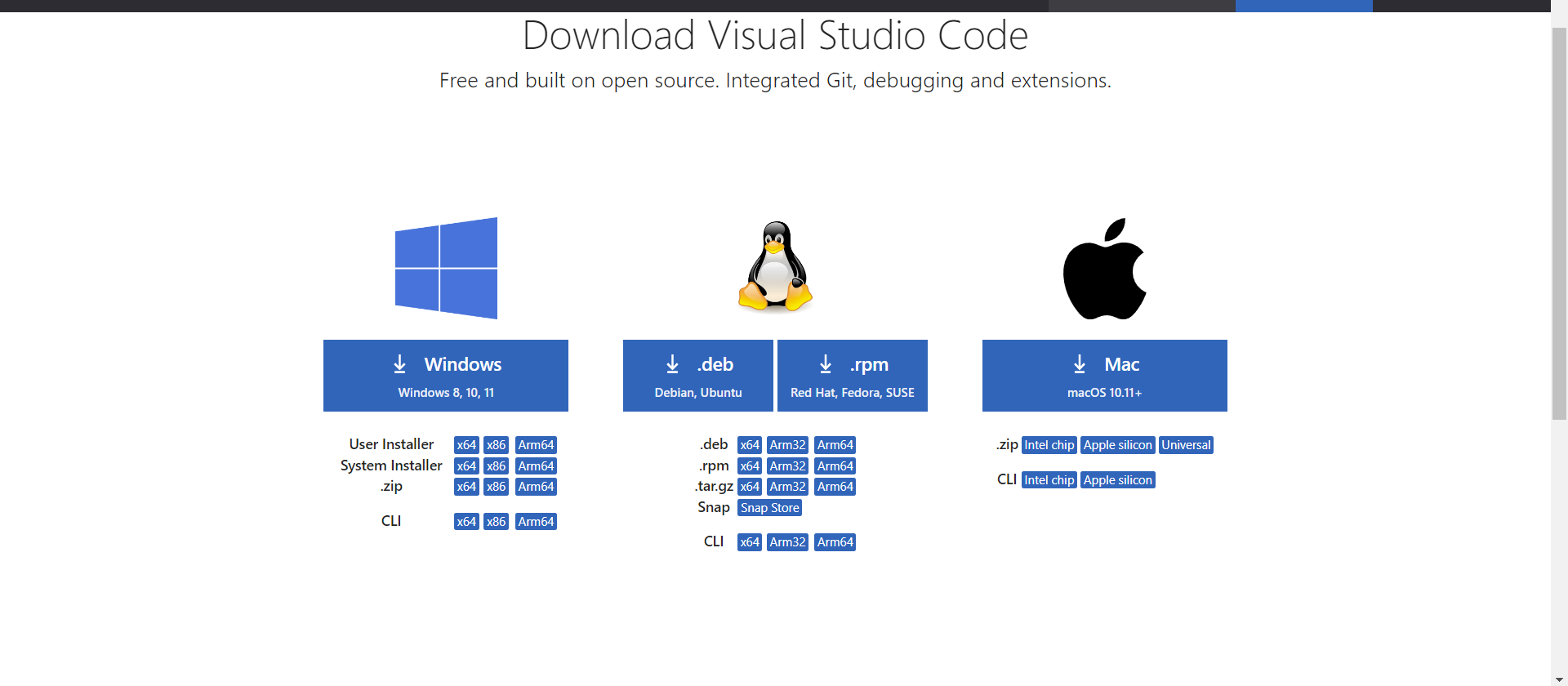
-
Go to your downloads and double-click on the VSCodeUserSetup.
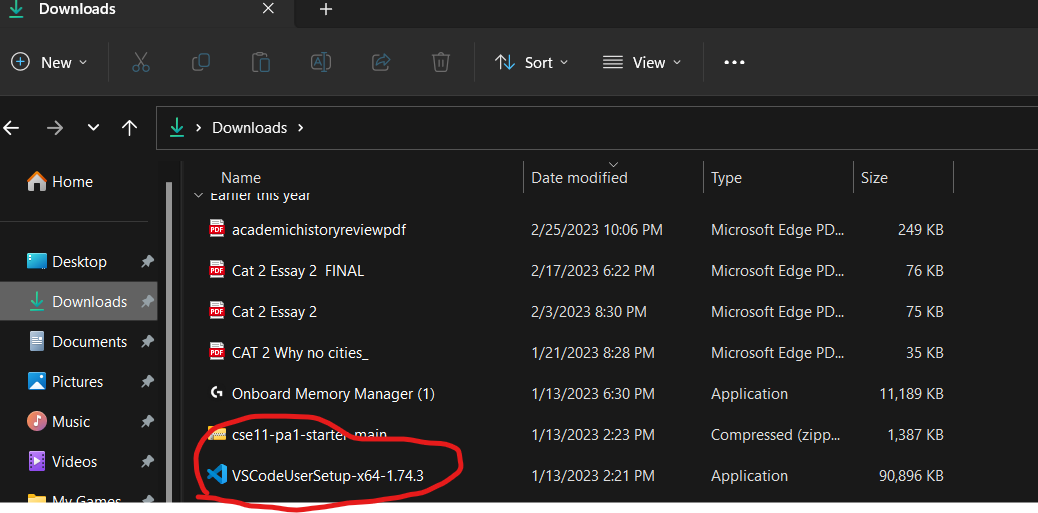
-
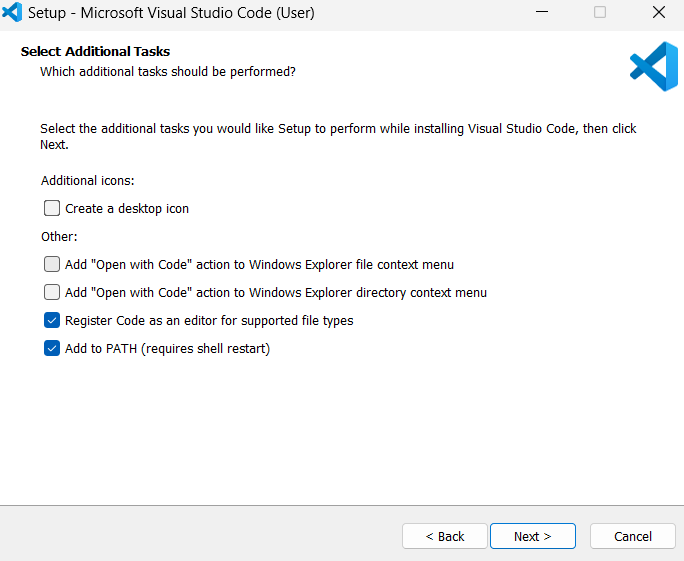
Accept the terms and click next until you see install.
 !
!
-
Click install.
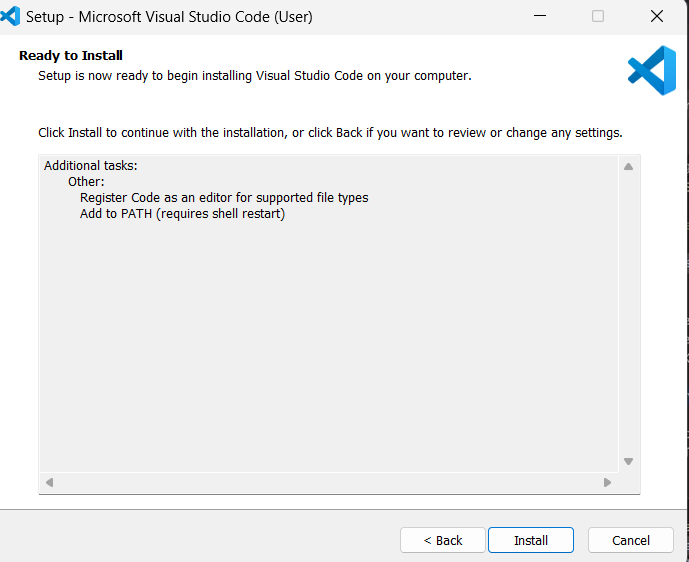
-
Finally, open Visual Studio Code.

Step 2: Remotely Connecting With Course-Specific Account on ieng6
-
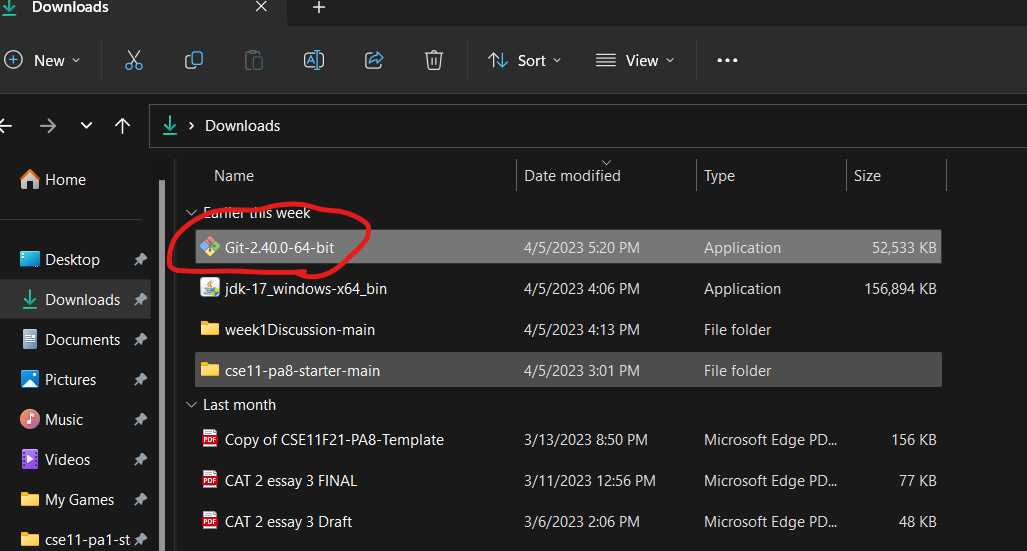
Download git: git Download
-
Go to your downloads and double-click on the git installer.
-
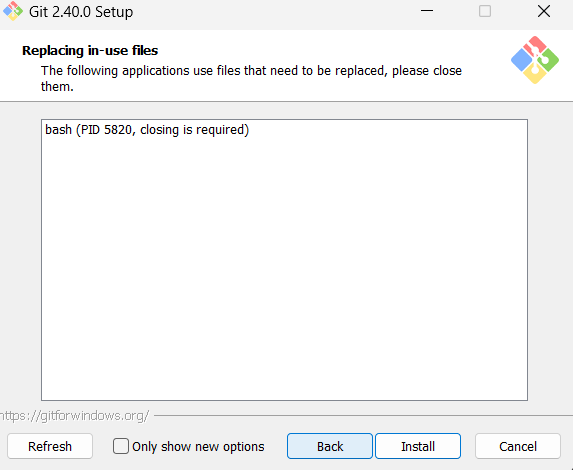
Hit next without changing anything. Then, click install.
-
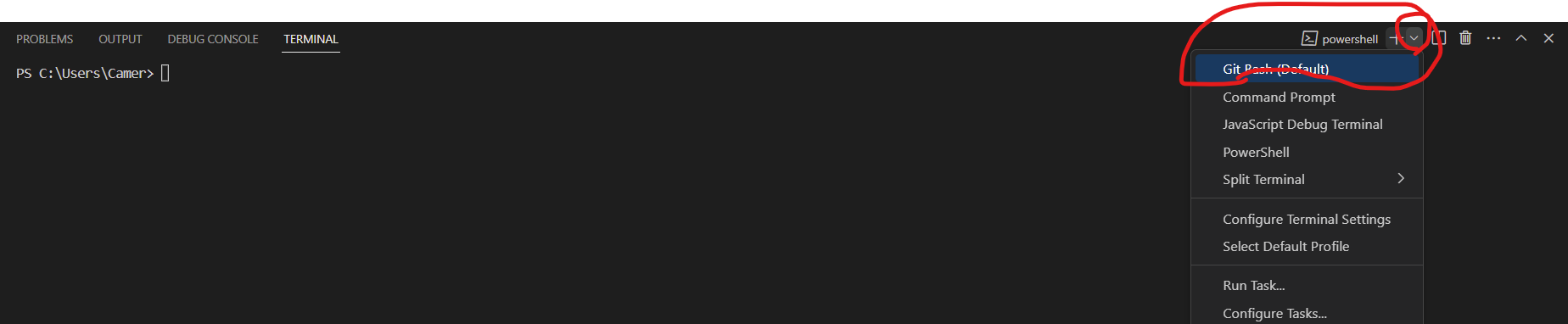
Next, go to Visual Code Studio and open a terminal (Click Terminal -> New Terminal)

-
In the terminal, click the dropdown by the +. Click Git Bash.
-
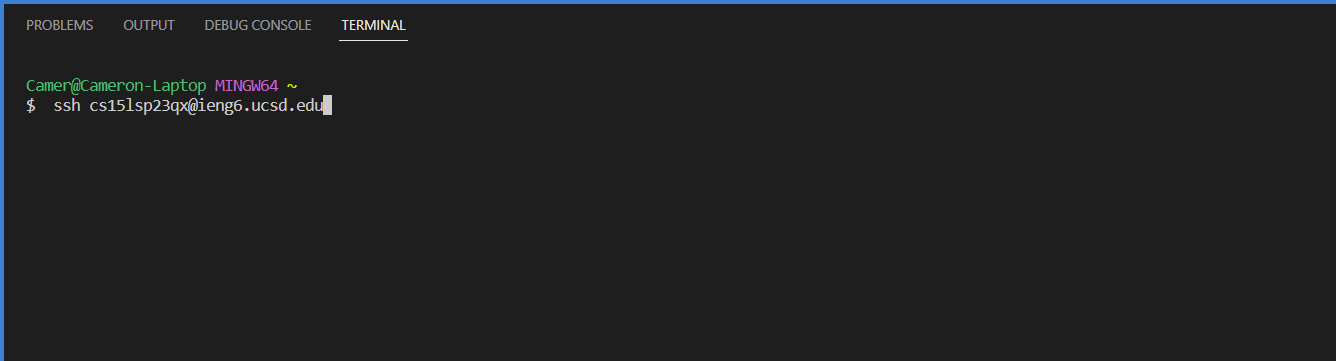
To remotely connect, use $ ssh cs15lsp23zz@ieng6.ucsd.edu in the terminal. Change the zz to match your account. (If terminal says “Connection to ieng6.ucsd.edu closed by remote host” or some other error, try $ ssh cs15lsp23zz@ieng6-202.ucsd.edu)
-
If it asks you “Are you sure you want to continue connecting (yes/no/[fingerprint])?” Type yes.

-
Then, it will ask for your password. Type your password in. Note: You cannot see your password when typing it in

-
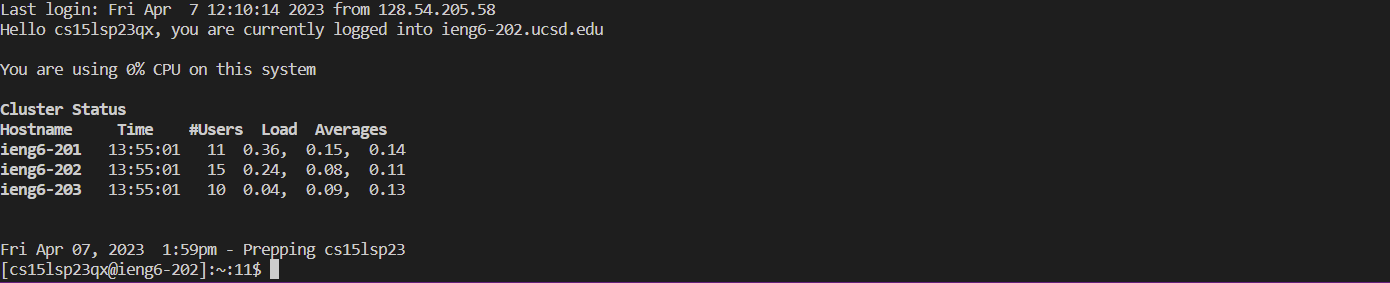
Once you are connected, your screen will look something like this.
Step 3: Trying Commands
-
Type any command you would like to use into the console.

-
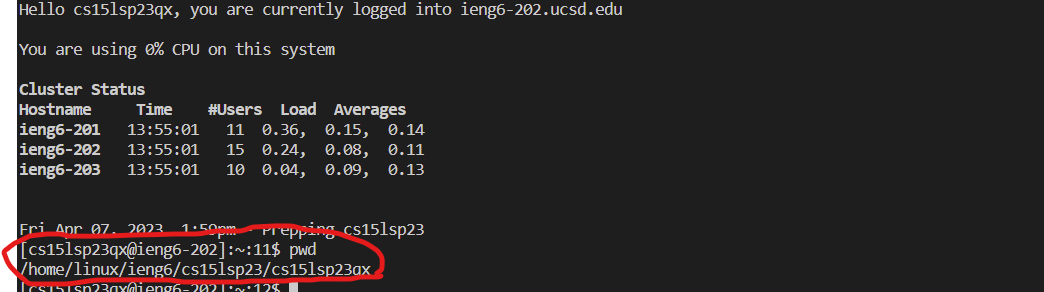
An example command is pwd which will output your current working directory
-
Other commands you could try are cd path to change the current directory, cat path1 path2 … to print the contents one or files, and ls path to list the files and folders of given path.
-
To log out, use Ctrl D or run the command exit.
